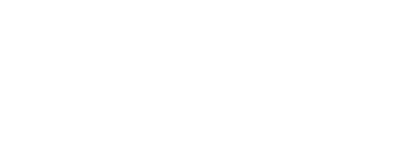
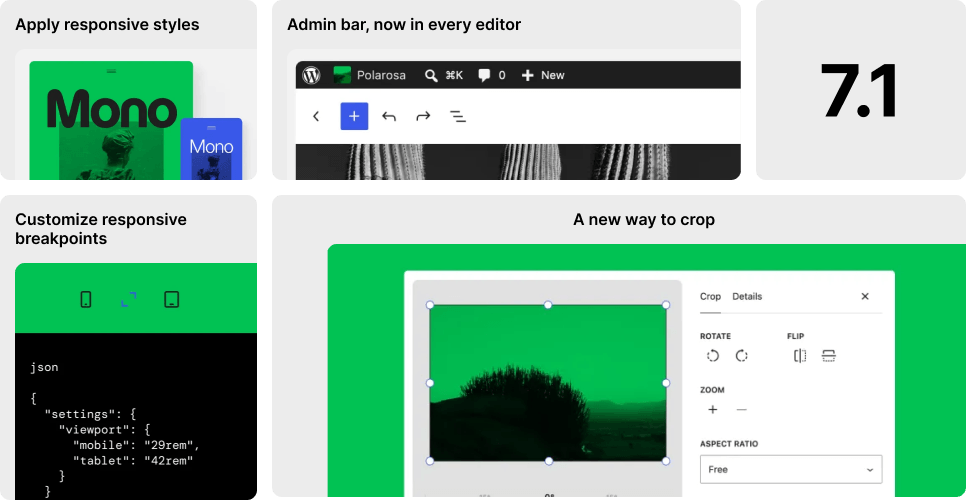
WordPress 7.1 brings several updates that make it easier to design, manage, and update your website.
One of the biggest changes is better control over how your website looks on different screen sizes. There’s also a new image editor, improved collaboration tools, new blocks, and many smaller updates in the WordPress admin area.
Here are some of the main highlights.
Before you update
Before updating, make sure you have a recent backup of your website. We recommend making a complete backup that includes your WordPress database, files, themes, plugins, media library, etc.
If you’re on a Good Websites WordPress Management Plan, you don’t need to worry about any of this. We handle WordPress and plugin updates, as well as backups, for you.
Better responsive design controls
This is probably the WordPress 7.1 feature we’re most excited about.
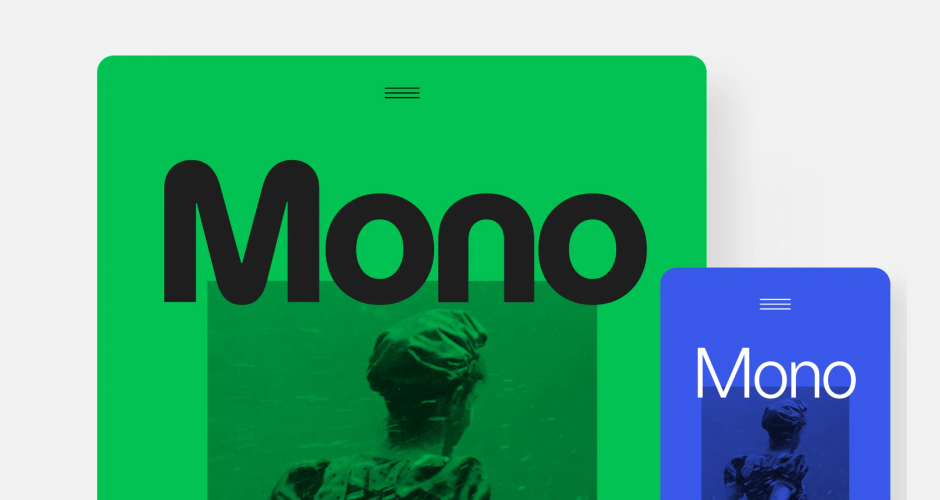
WordPress already lets you hide individual blocks on mobile, tablet, or desktop. With version 7.1, you can now change how blocks are styled for different screen sizes.
For example, you can make a heading smaller on mobile, adjust spacing around a block on tablets, or change other styles without needing to write any code.
You can set these responsive styles for all instances of a block or adjust a single block on a specific page.
You can also preview how your website looks on different screen sizes while editing.
Developers can now set custom mobile and tablet breakpoints within a theme, so responsive controls match the website’s design.
This is something that’s been missing from the block editor for a long time. We’ve traditionally handled a lot of this with custom CSS, so having more responsive controls built directly into WordPress is a welcome improvement.
The admin toolbar stays with you
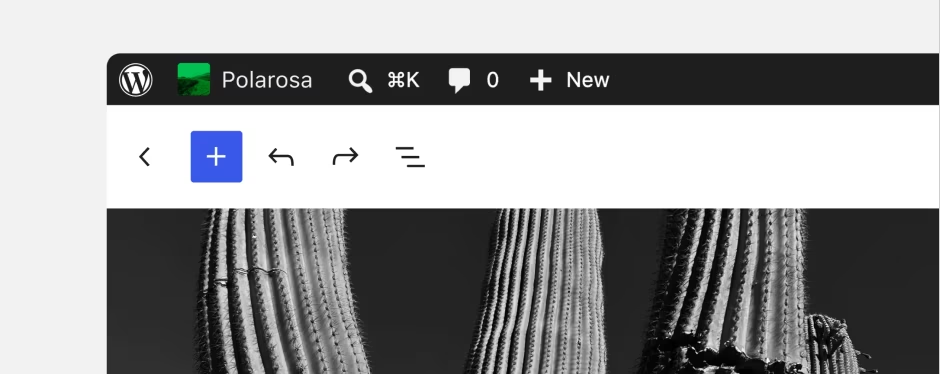
The WordPress admin toolbar now stays visible when you work in the Site Editor or Block Editor.
Previously, the toolbar would disappear in these editing areas, making navigation feel disconnected.
The toolbar has also been updated. There’s a clearer back button, your website icon now appears in the toolbar, profile avatars are round, and several old icons have been replaced with new ones.
There are a few other useful admin improvements.
The Command Palette now groups commands into Recent, Matching, and Suggestions, and remembers your recently used commands between sessions.
Site identity settings like your website title, tagline, logo, and icon now have their own section in the Site Editor, making them easier to find.
The Posts screen can now display a short excerpt for each post, and Shift-click selection makes it easier to select multiple items at once in Site Editor list views.
A better image editor
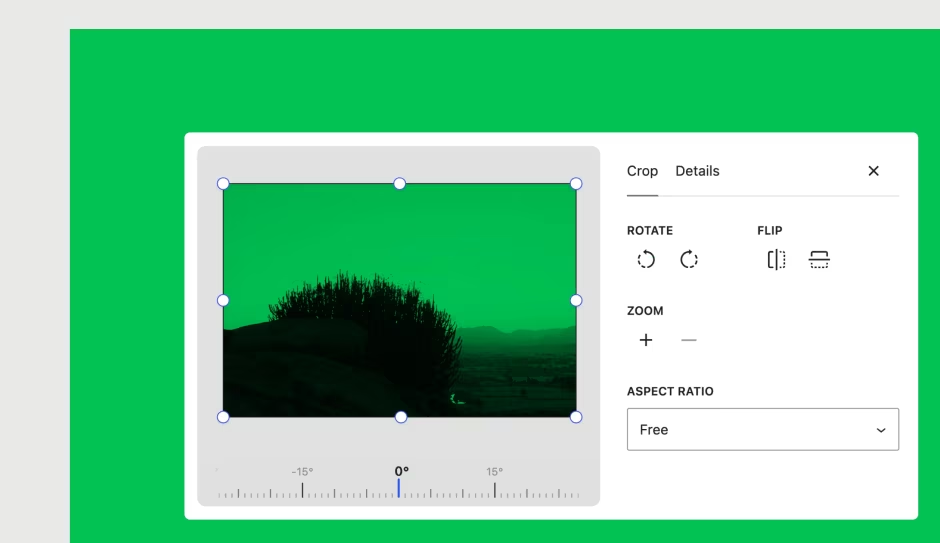
WordPress 7.1 introduces a dedicated Media Editor for cropping and adjusting images.
You still start by clicking the familiar Crop button on an Image block, but now WordPress opens a separate editing window instead of editing the image directly on the page.
In this window, you can crop an image, choose a specific aspect ratio, flip it horizontally or vertically, rotate it more precisely, and edit image details.
This brings all the main image editing tools together in one place and makes adjusting images in WordPress easier.
Better Notes for working together
WordPress introduced Notes in version 6.9, allowing people to leave comments on individual blocks while working on content.
WordPress 7.1 makes Notes much more useful for teams.
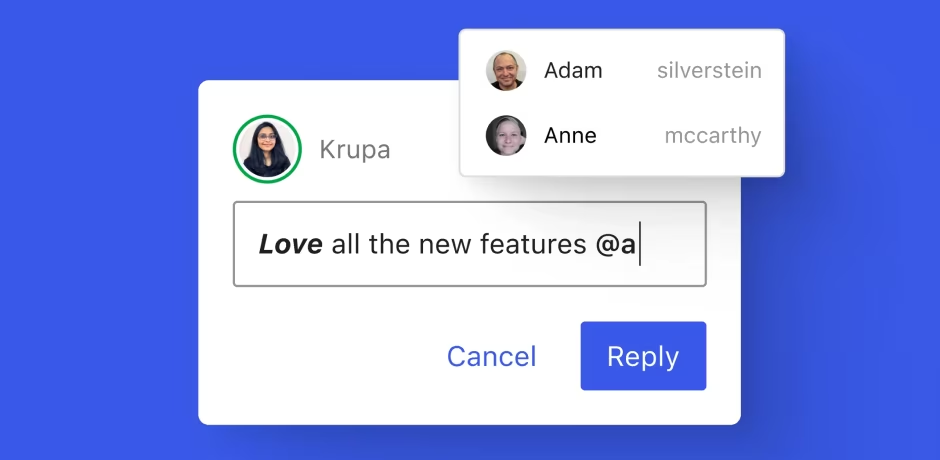
Now, you can leave a Note on a specific piece of text instead of the whole block. Notes also support formatting such as bold, italics, code, links, and emojis.
You can mention another user with @ to get their attention, and WordPress can send them an email notification with a link to the post.
You can have multiple conversations on the same block, and longer Notes can be collapsed to keep things organised.
For businesses with several people reviewing or approving website content, this makes it much easier to keep feedback within WordPress instead of sending changes back and forth via email.
Improved image uploads
WordPress 7.1 continues to improve how images are processed when you upload them.
Now, more of the work for resizing, compressing, and creating image thumbnails happens in your web browser before the files reach the server.
Most website owners don’t need to do anything extra. The main benefit is more reliable image uploads and less work for the server, especially with large images.
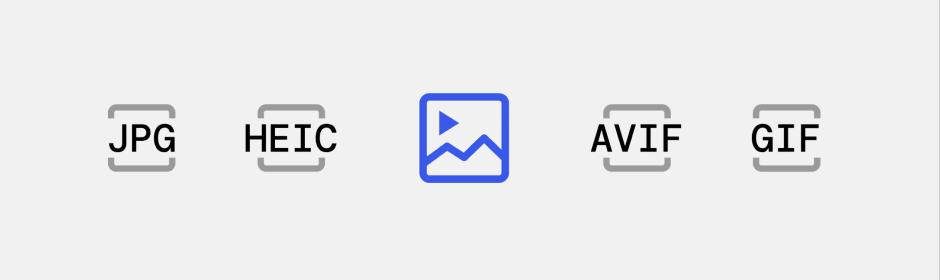
WordPress 7.1 also adds support for newer image formats, including HEIC images from iPhones, AVIF, and other modern image formats.
New Tabs block
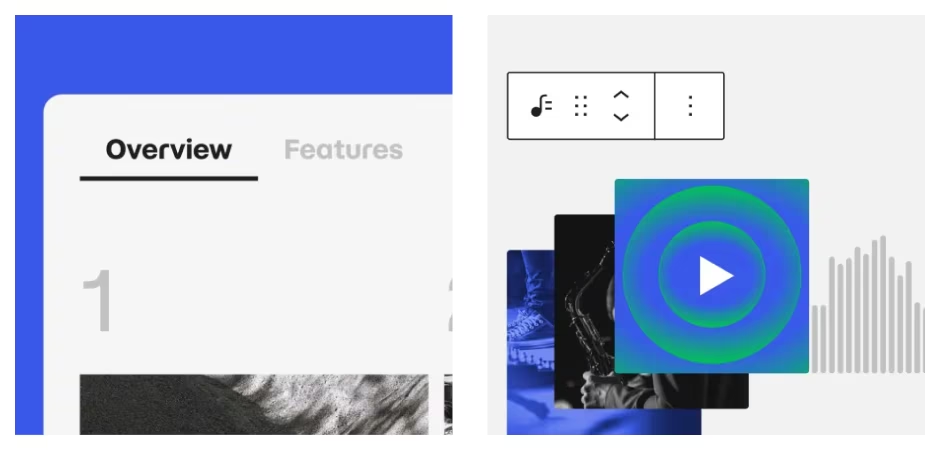
WordPress 7.1 introduces a new Tabs block.
Tabs let you organise related information into clickable sections instead of showing everything at once.
They are useful for FAQs, product specs, service info, or comparisons where showing everything on one long page would make it harder to read.
New Playlist block
There’s also a new Playlist block for websites that publish audio.
You can group multiple audio tracks into one playlist, with track info, artwork, and an optional waveform that shows the audio as it plays.
Not every business website will need this, but it’s a helpful feature for podcasts, musicians, audio resources, and other sites with multiple audio files.
Better button styling
WordPress 7.1 gives you more control over how buttons and other interactive blocks respond to users.
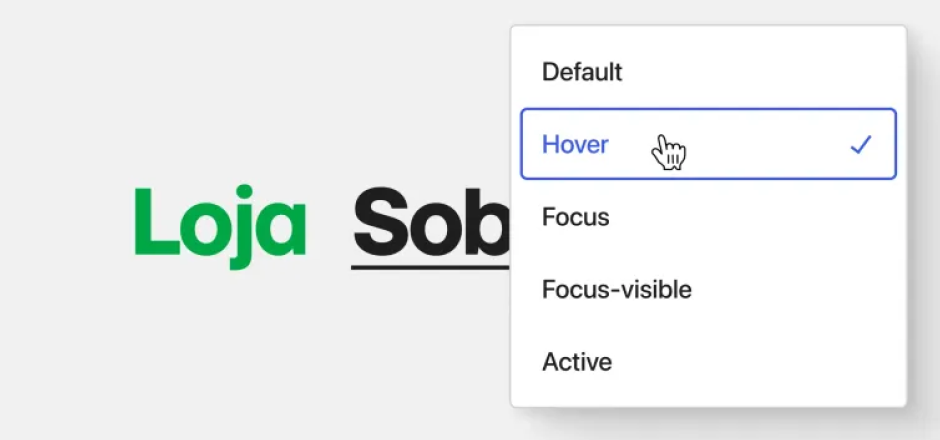
A new State option lets you create different styles for hover, focus, and active states right in the editor.
For example, you can change a button’s background colour when someone hovers over it and preview the effect while editing.
Previously, this type of styling generally required custom CSS.
What does this mean for you?
WordPress 7.1 mainly focuses on making existing tools more useful.
For you as a website owner, the improvements to image editing, Notes, admin navigation, and new blocks make everyday website management a little easier.
For us as developers, responsive styling is the standout feature. We’ve always had full control over mobile and tablet styling with custom CSS, but being able to handle more of this directly within WordPress should make responsive designs easier to build and maintain.
There are also many smaller improvements behind the scenes that make WordPress faster, more accessible, and easier to build on.
Under the hood
Most website owners won’t notice these changes directly, but they help developers build faster, cleaner, and more reliable WordPress websites.
- Faster editor loading – WordPress can preload the information the editor needs, helping it open faster, particularly on larger websites.
- Custom icon collections – Developers can register their own icon libraries and make those icons available throughout WordPress alongside the built-in icons.
- More responsive theme controls – Themes can define their own mobile and tablet breakpoints and control responsive styling through WordPress theme settings.
- More styling options – Theme developers get better control over hover, focus, and active states, reducing the amount of separate custom CSS needed.
- More consistent editing – The post editor is now isolated from the surrounding WordPress admin interface for all themes. This helps prevent admin styles from interfering with page content and makes responsive layouts behave more consistently while editing.
- Accessibility improvements – WordPress 7.1 includes improvements to screen reader support, navigation, labels, and accessible tooltips throughout the admin area.
- More reliable uploads – Upload progress indicators, automatic retries, and more image processing in the browser help make larger media uploads more reliable.